- 4 min read
- website chatbot
How to Add an AI Chatbot to Your Website Using Your Content
Set a clear scope, connect approved business content, test answers and human follow-up, then install and check the chatbot on your website.
By Eman El-Bakry
Read this article in Arabic
To add an AI chatbot to your website, choose the questions it should answer, connect approved business content, test it privately, and install the platform's website code. Before opening it to visitors, check that both answers and requests for a person reach the right place.
You need permission to change the website and someone to own the answers after launch. A working chat icon is only the installation check.
Start with one useful job
Pick a task with an answer your team can verify, such as explaining course requirements or delivery areas. Write down what the assistant may answer and what needs a person.
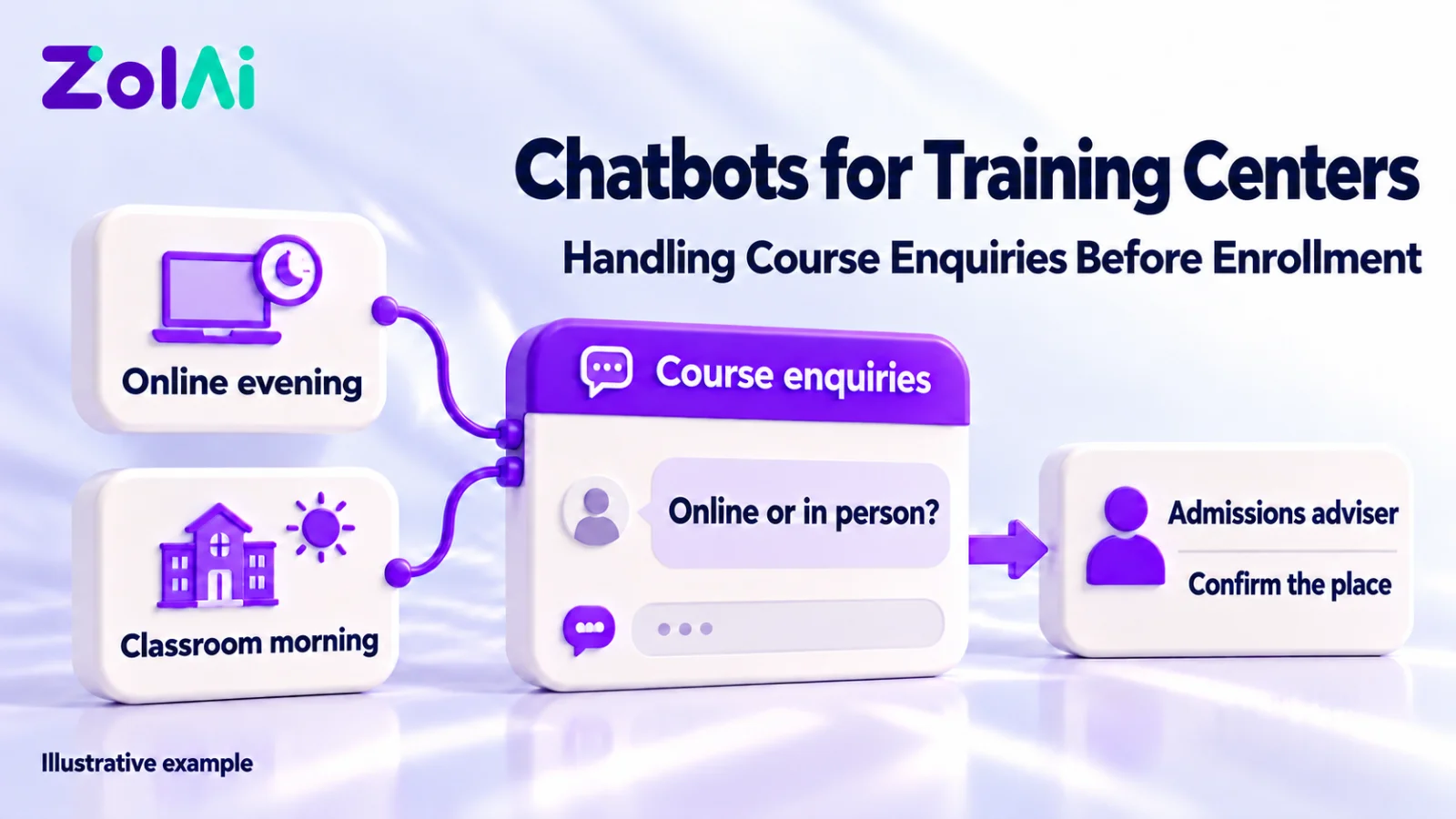
For a hypothetical training business, the first scope could be course duration, prerequisites and published fees. Confirming a remaining seat or taking a payment stays outside that scope unless a tested connection supports it.
If you are still comparing tools, first check the requirements in the website chatbot selection guide. Include the languages visitors use, a workable human follow-up route and access to the website's code settings.
Add a small set of approved information
Connect a current service page, policy or document that covers the chosen task. A knowledge source gives the system material to consult; uploading a file does not prove it can find or interpret every answer.
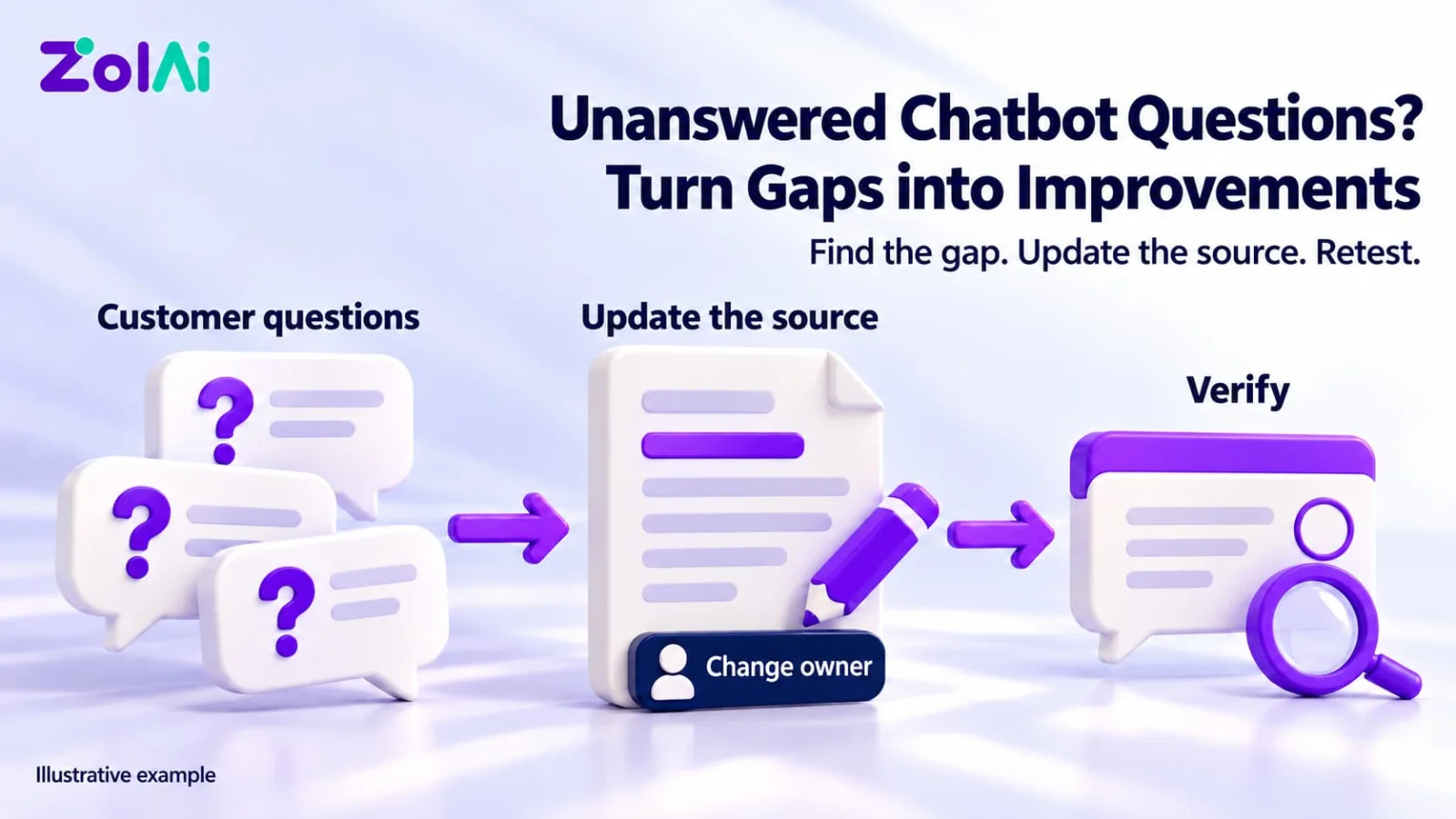
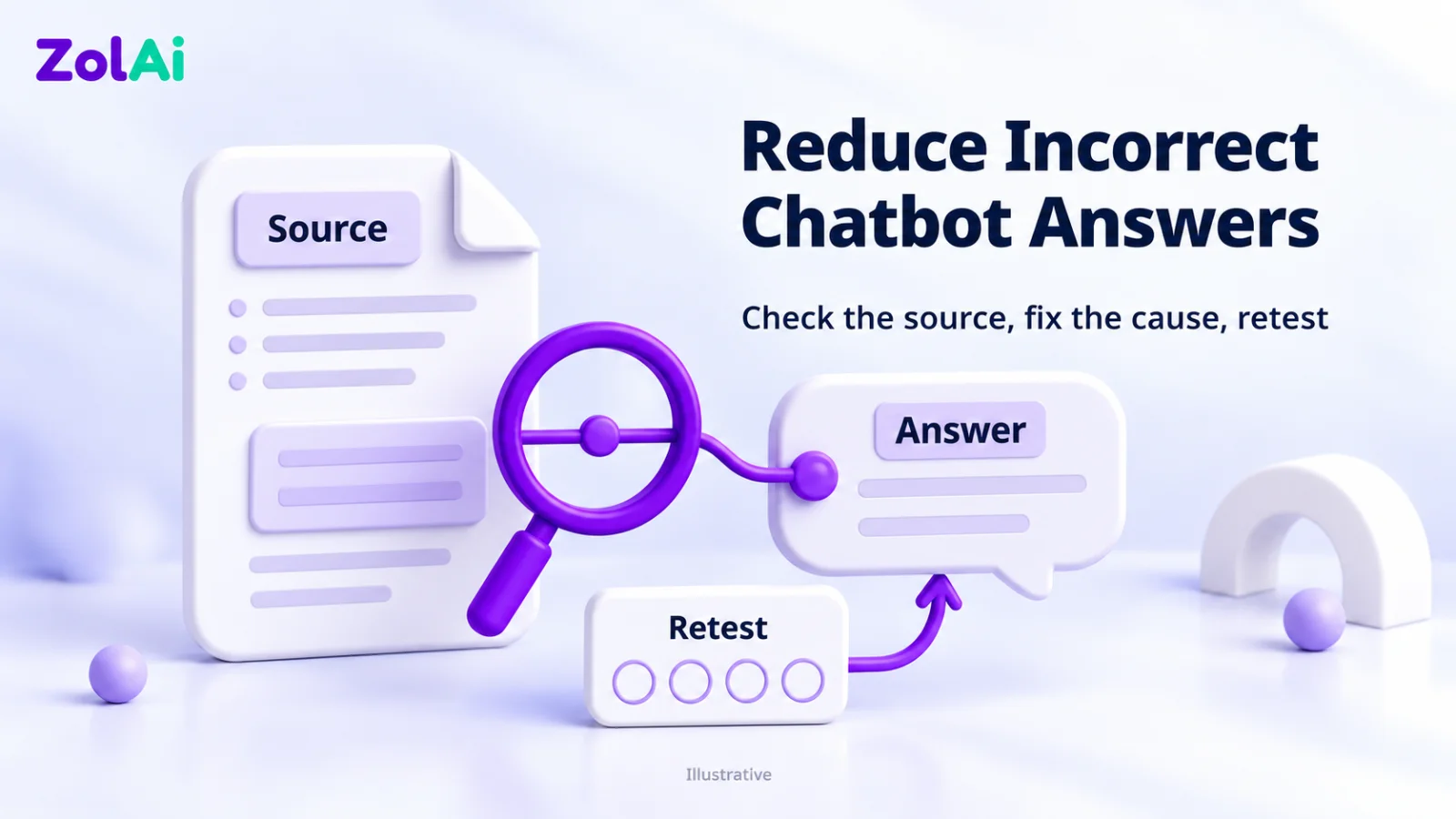
Check the imported text if the platform exposes it. Are the dates, prices, conditions and links present? Remove obsolete versions and content customers should not see. Use the content preparation guide if your sources contradict each other or rely on images.
Keep a short note of the source version and its owner. For ZolAi, a manually uploaded catalog needs updating and reuploading; a catalog added by URL needs refetching. A website link does not establish automatic synchronization.
Test answers and follow-up before installation
Use these checks as a proposed starting set, with expected answers written from your own content:
Check | What you need to see |
|---|---|
A straightforward question | A correct answer that preserves relevant conditions |
A different wording of that question | The same business meaning, without a new promise |
An unclear request | A relevant clarification rather than a guess |
Information absent from the source | An honest limit and an appropriate next step |
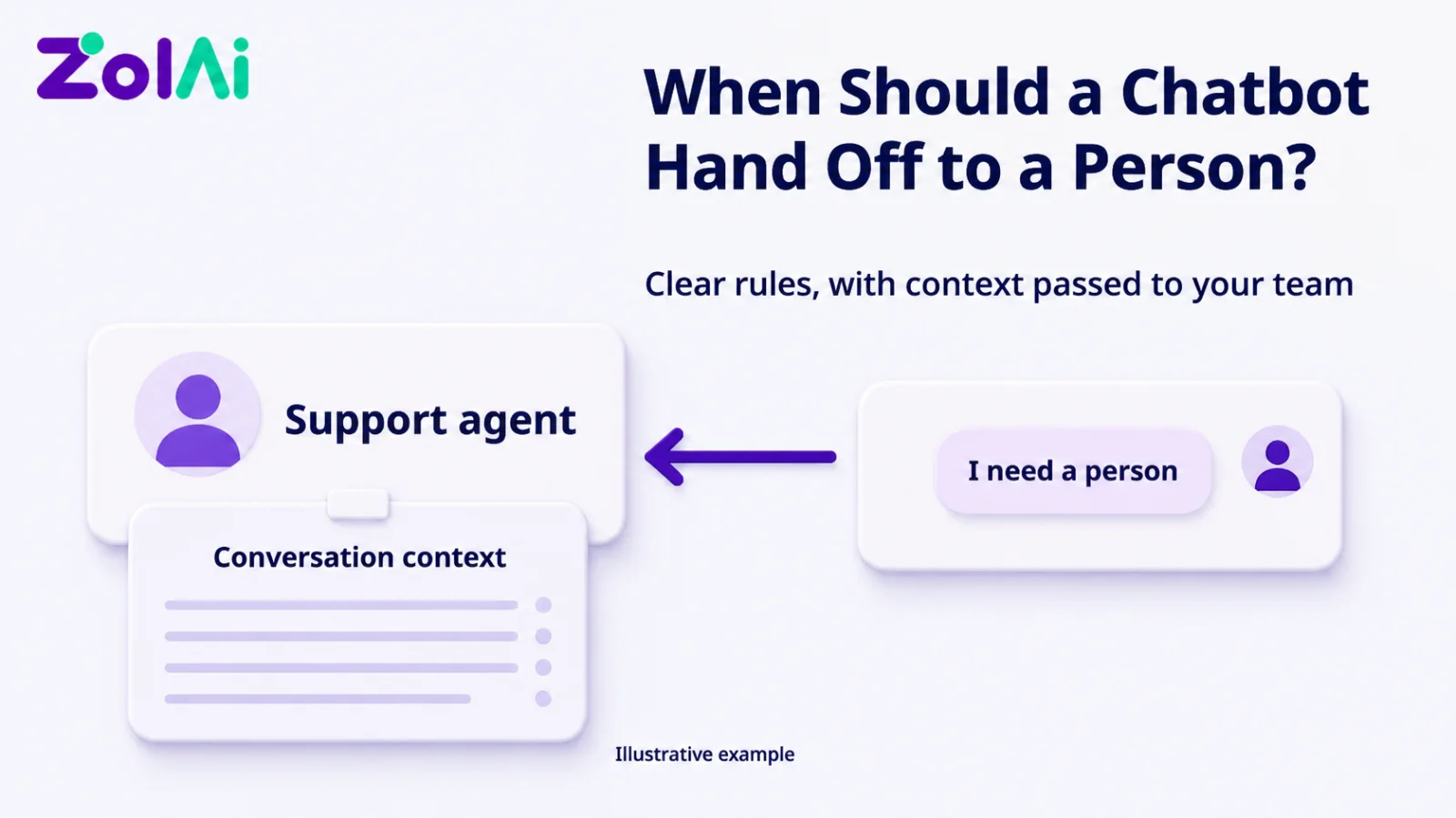
A request for a person | A request your team can actually find and follow up |
For Arabic visitors, include the wording they use and inspect Arabic text, numbers and links in the actual interface. The Arabic chatbot test set gives a more detailed evaluation method.
Name the person who checks forwarded conversations. Agree on what visitors should hear when that person is unavailable. Test the receiving side as well as the visitor's message; “I'll pass this on” is not proof that the request arrived.
Install the supplied code once
Copy the embed code supplied by your selected platform and follow its current placement instructions. Locations vary: for example, ChatLab's installation documentation specifies its own widget placement. Do not apply another vendor's snippet or placement automatically to ZolAi.
Ask your developer to install it through the website's supported code or component mechanism. Confirm that it is not already included elsewhere. A chat widget can appear on a site without providing access to orders, bookings or private account data.
Keep the previous website version or a clear way to disable the snippet if something goes wrong. No secret API key should be added to public page code as a substitute for the provider's embed instructions.
Check the real visitor experience
Open the installed version in a fresh browser session on desktop and mobile. Send a message, follow an answer link, switch page, and check that the widget does not cover a purchase or navigation control. Repeat the human-follow-up check from that installed version.
If the widget does not appear, have the person responsible for the site check the published code, caching, consent controls and script errors. Avoid repeatedly pasting the snippet while troubleshooting.
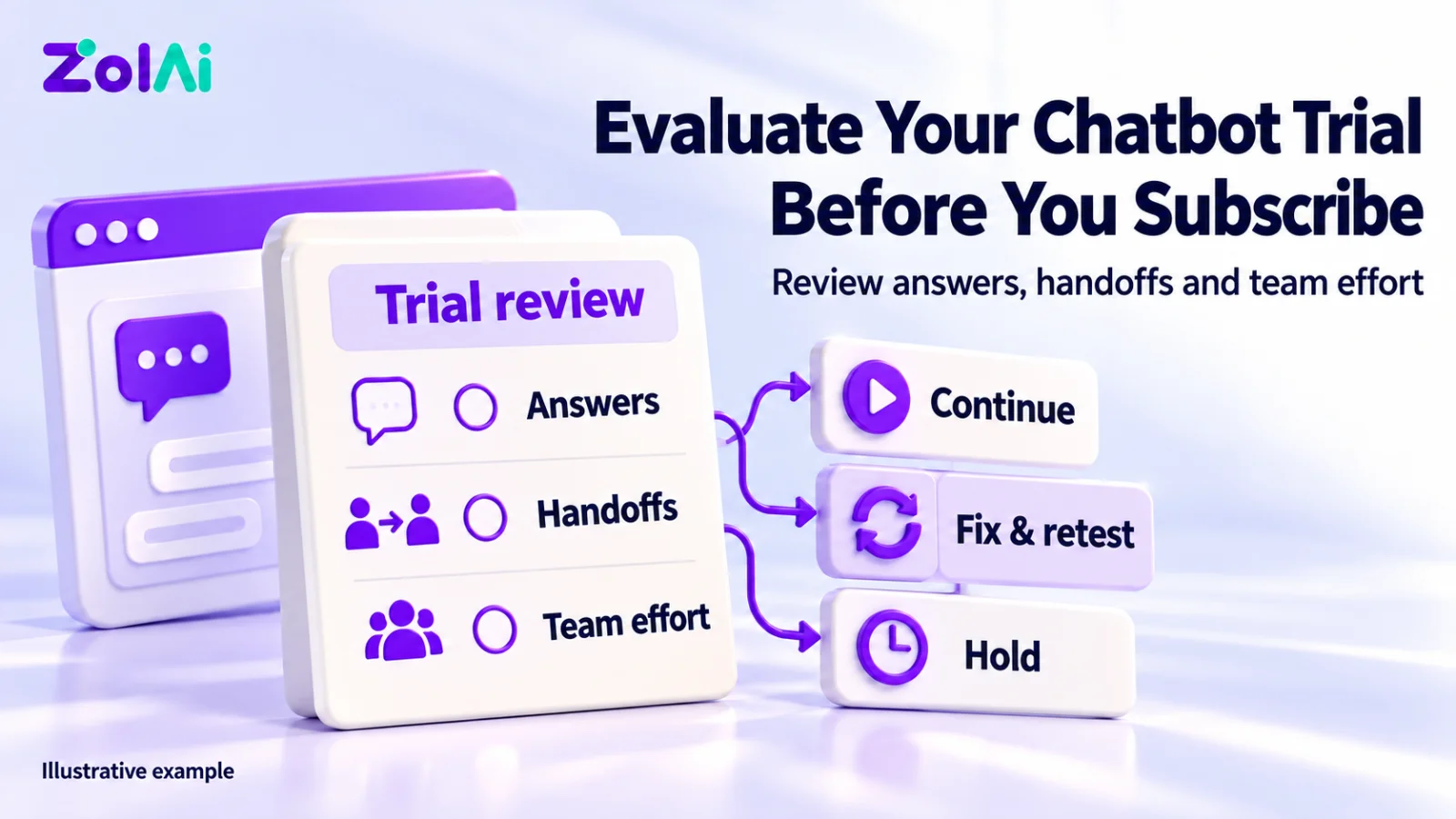
Launch with the narrow scope that passed these checks. Review early conversations for wrong answers, missing information and unowned requests before expanding it.
ZolAi supports website answers in Arabic and English from business information, with a team inbox and human handoff. Start a 14-day trial without a credit card and work through one source, a few real questions and a complete follow-up check.